Accommodation provider code, establishment code, username and password for the SES Hospedajes web service
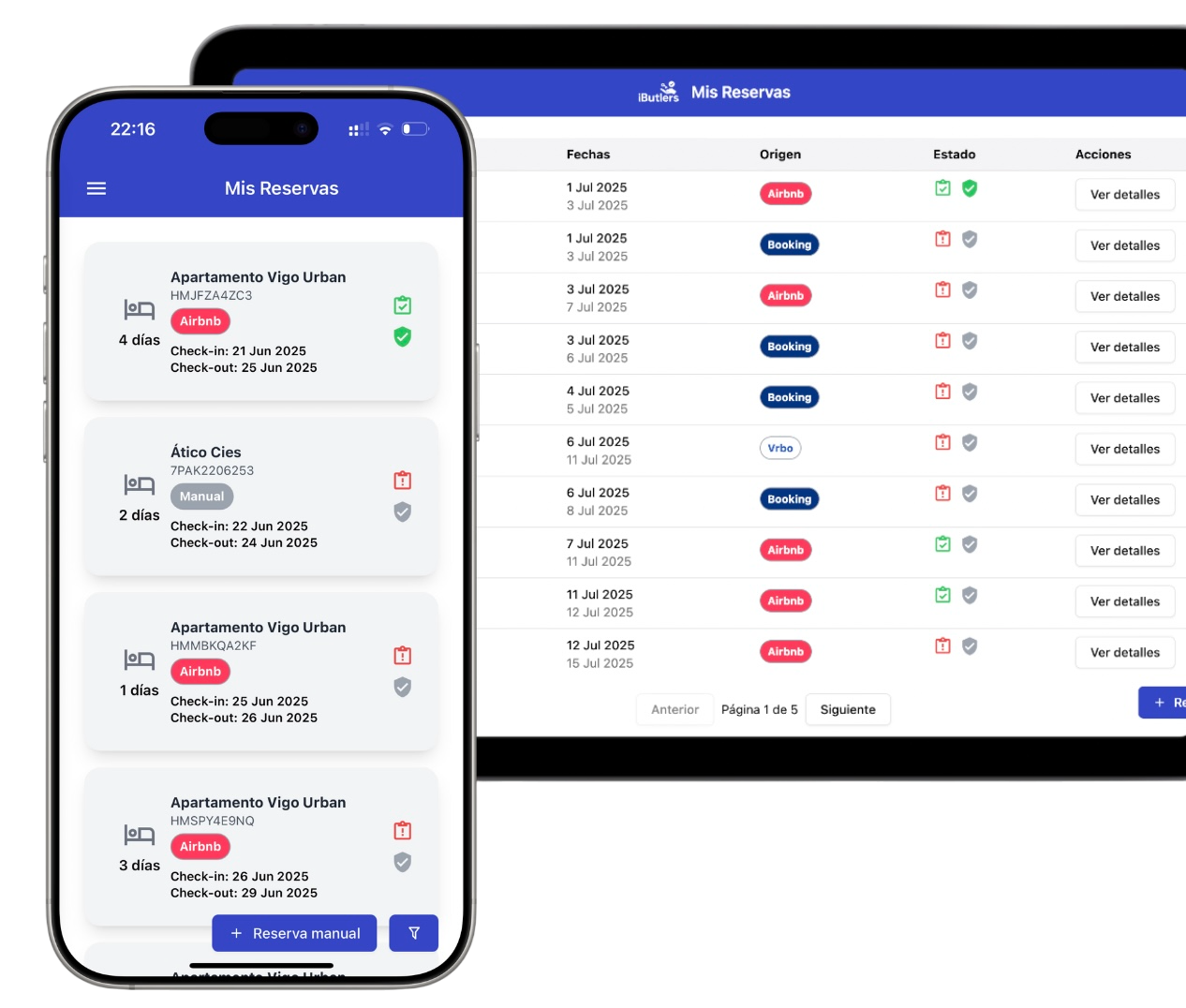
💡 Tired of guest registration? Did you know you can automate data collection and submission to the authorities?
With iButlers, you manage the entire process securely, legally and without hassle.
If you have registered with SES Hospedajes but cannot find the details you need to submit your guests' data through web services, follow the steps below to obtain:
- ‘Código de arrendador’ (landlord code)
- Establishment code
- Web service username
- Web service password
Would you like us to handle registration with the SES-Hospedajes system for you? Email us at contacto@ibutlers.com with the subject line “ALTA”.
Service included with the annual subscription
If you already have the details and only need to add them to the property in iButlers, we explain how to do it here.
1. Access the portal
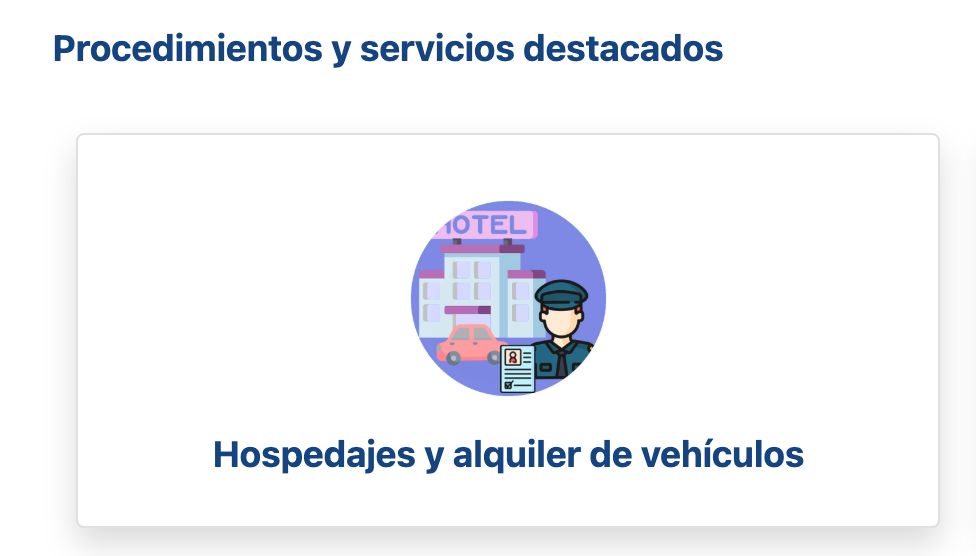
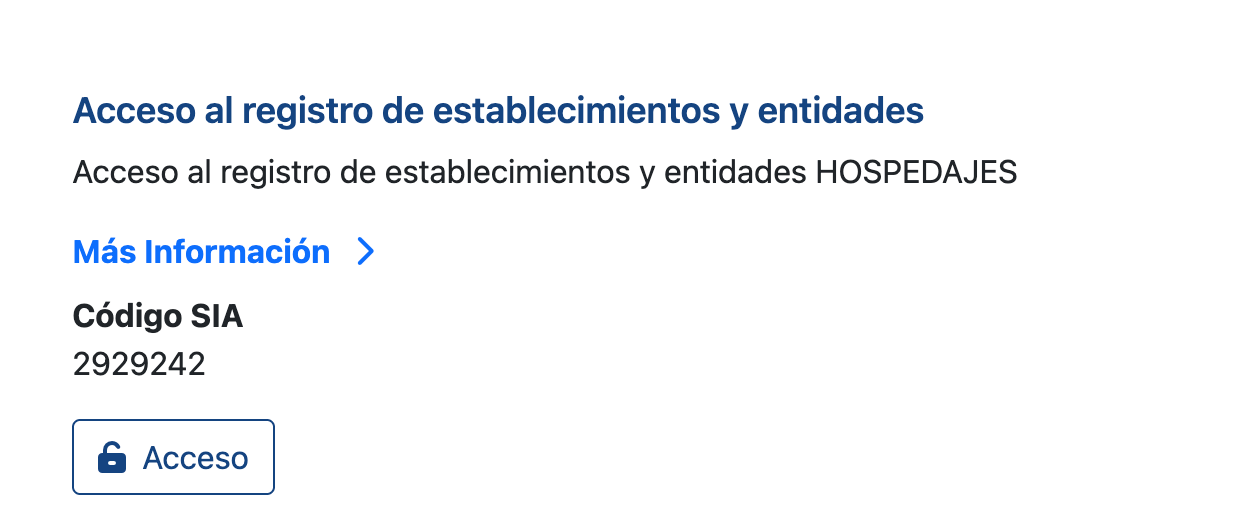
Visit the SES Hospedajes portal using this link and select Access the establishment and entity register (‘Acceso al registro de establecimientos y entidades’), under ‘Hospedajes’.
2. Identification
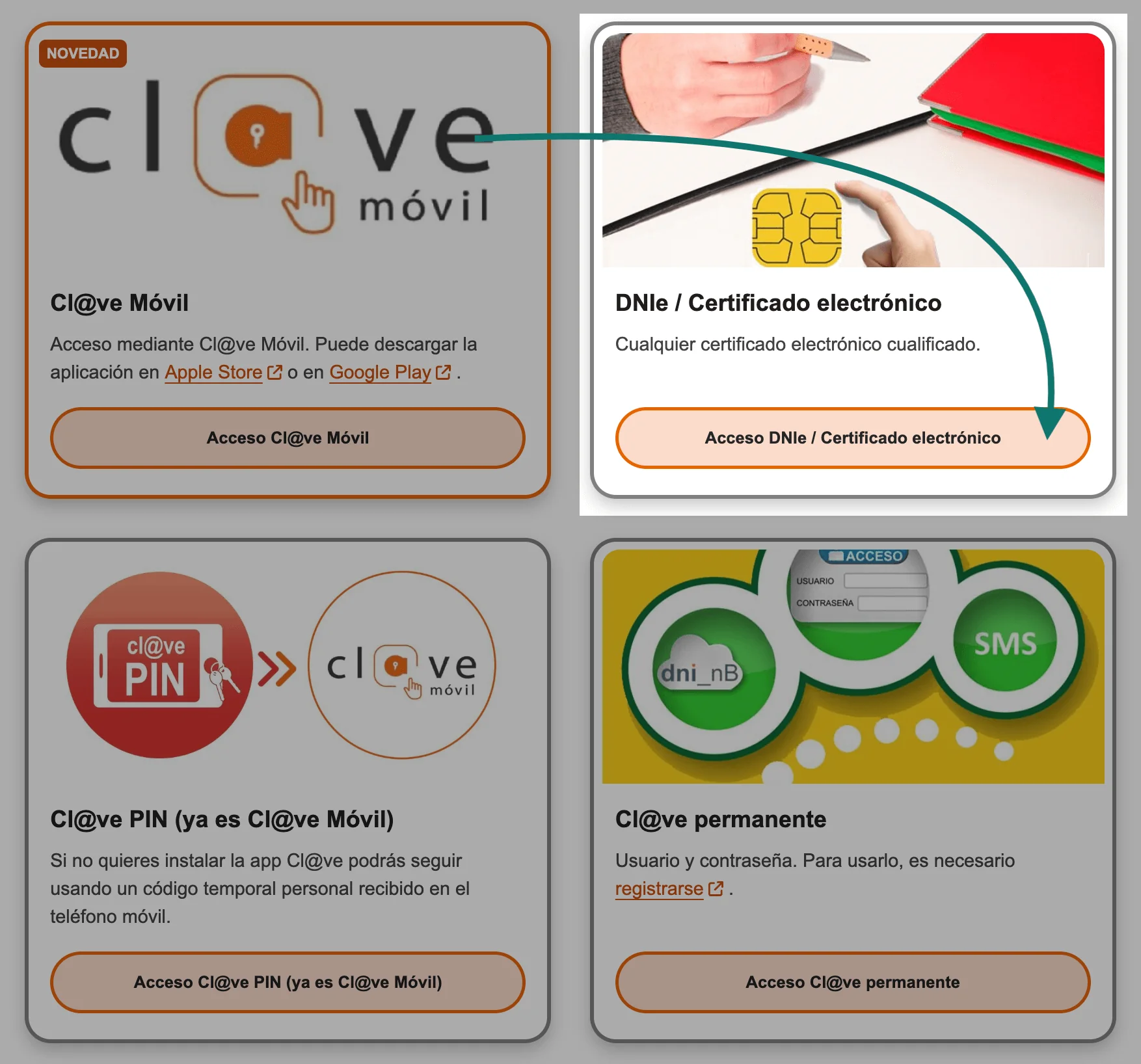
Choose your identification method. We recommend “Acceso por DNI Electronico” (Access with an electronic ID card).
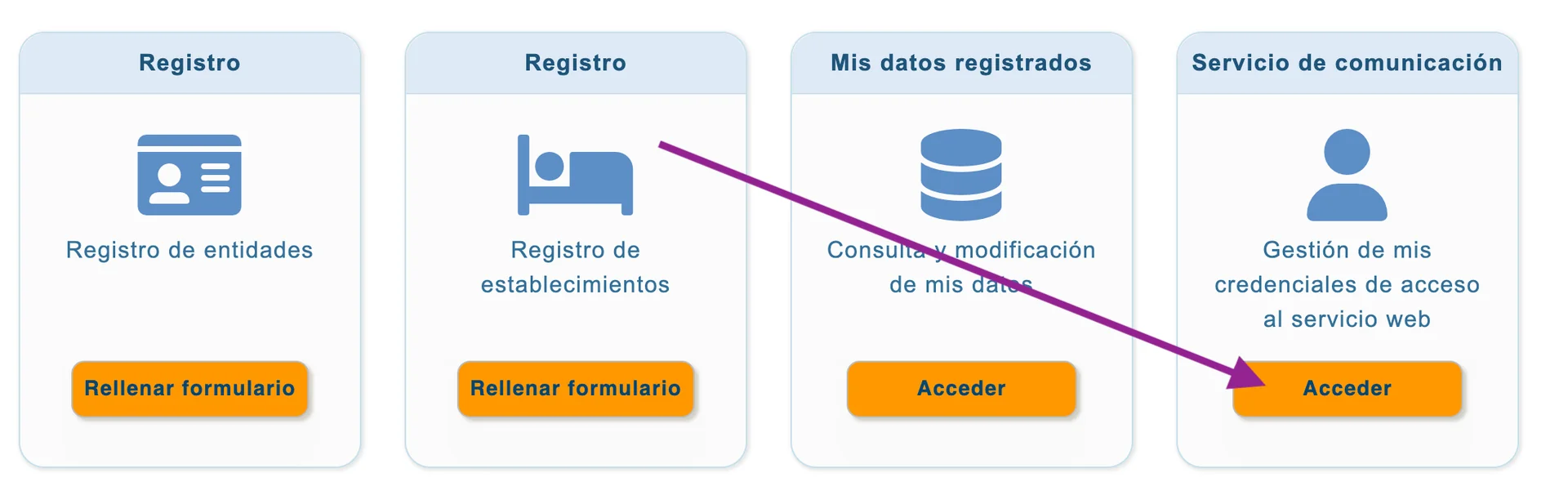
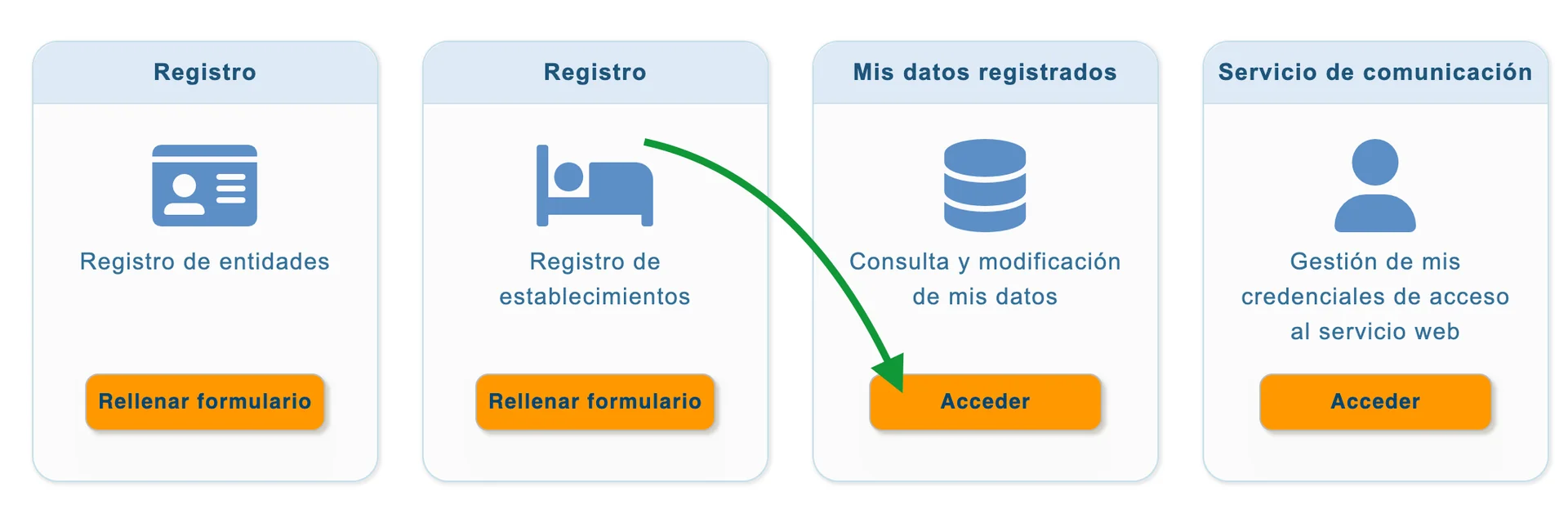
3. Click “Acceder” (Access) in the “Servicio de comunicación” (Communication service) section
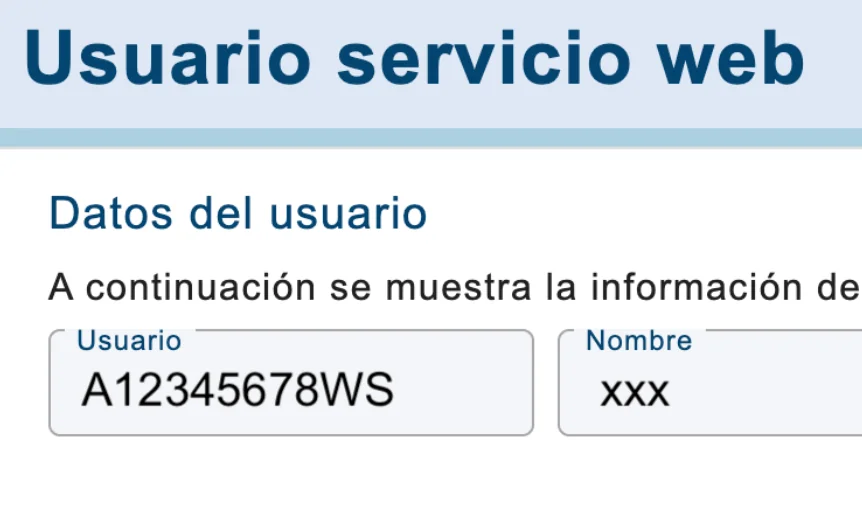
4. Your web service username appears in the top left-hand corner.
5. Click “Cambiar contraseña” (Change password)
⚠️ Please note: if you need to change the ‘Servicios Web’ password to automate data submissions to SES Hospedajes, follow this guide:
How to change your web services password to automate data submissions to SES Hospedajes
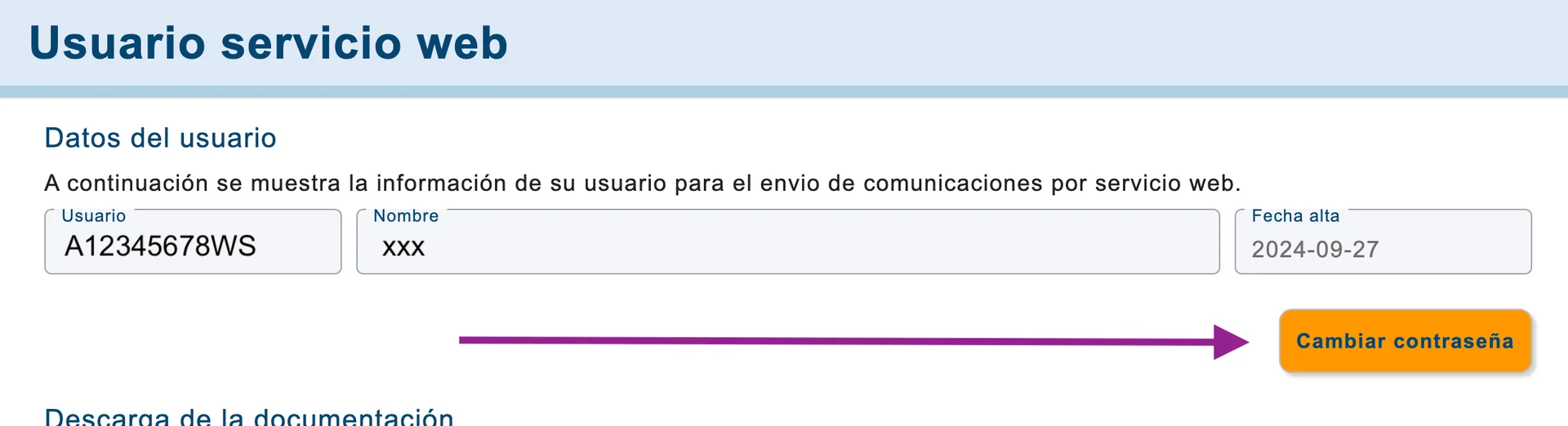
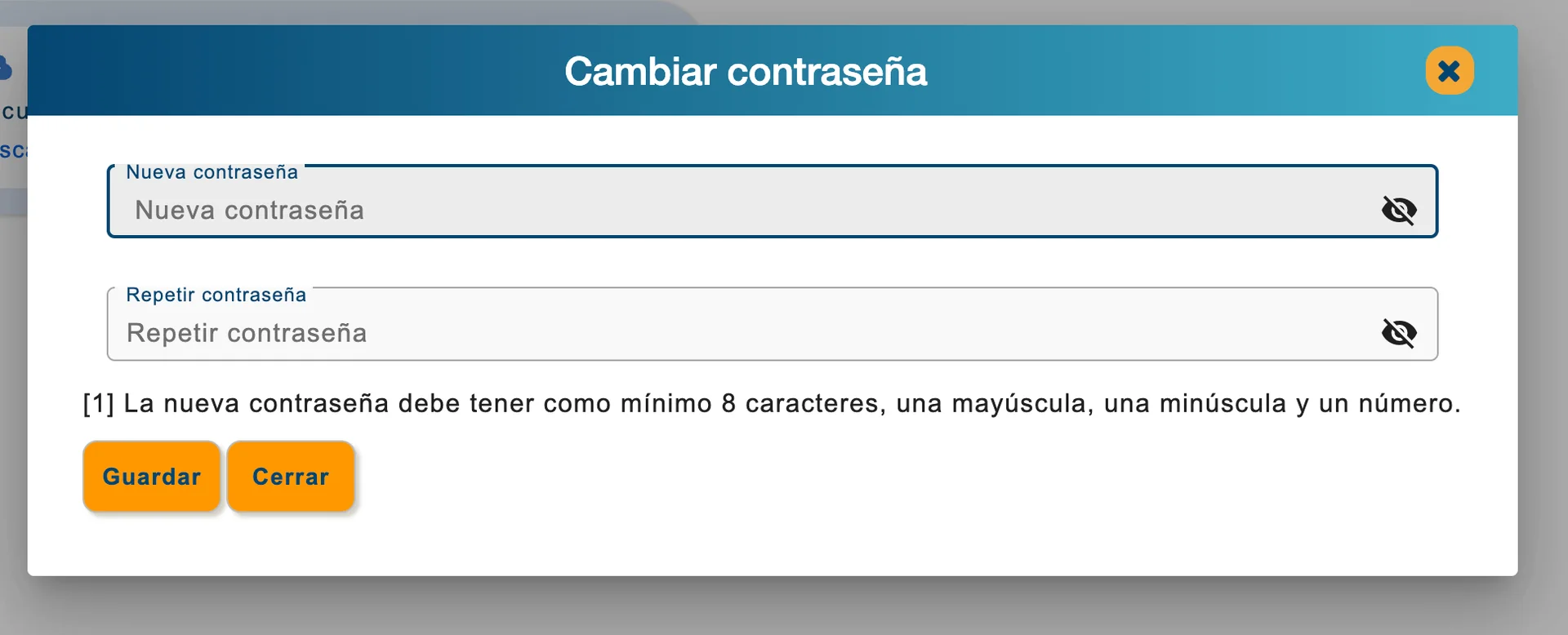
6. Enter your new password and click “Guardar” (Save).
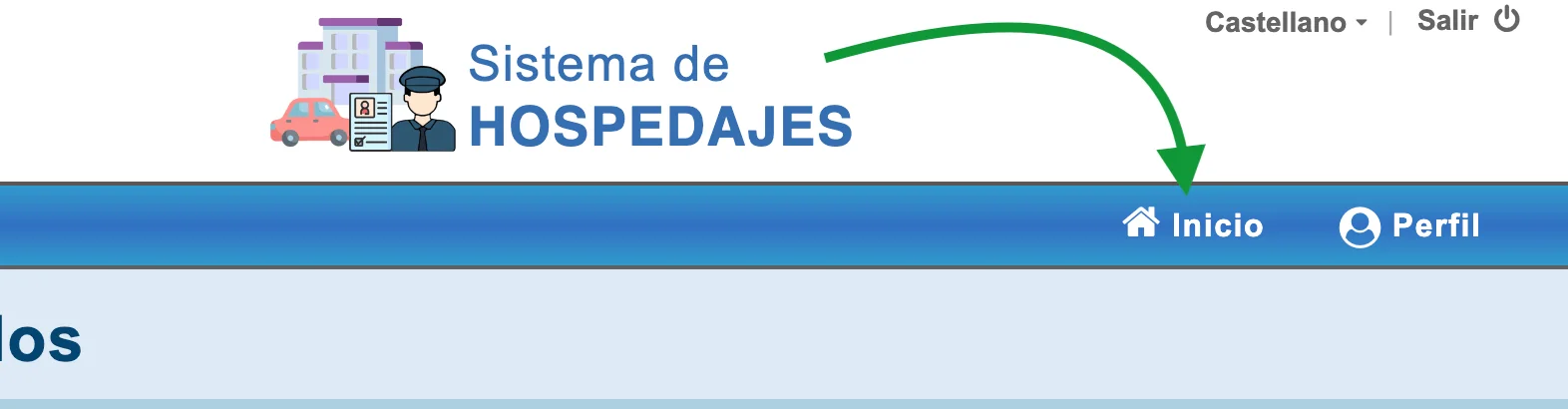
7. Click “Inicio” (Home) to return to the home page.
8. Open “Mis datos registrados” (My registered details).
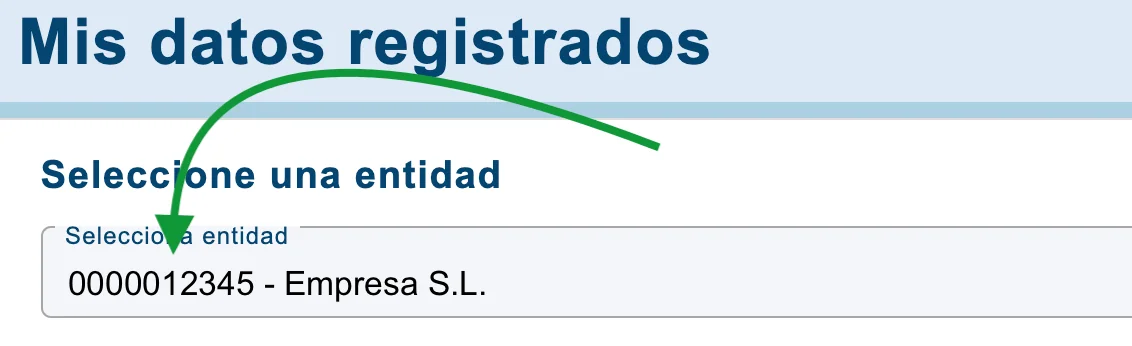
9. Your landlord code appears before your entity’s name in the “Seleccione entidad” (Select entity) drop-down:
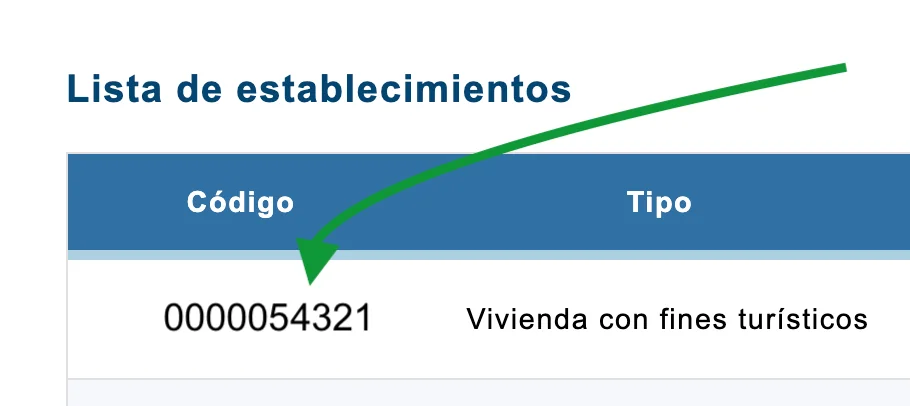
10. Further down the same page, in the “Lista de establecimientos” (List of establishments) section, you will see each of your establishments preceded by its establishment code:
⚠️ Please note: you are already registered, but you need to activate web services. You can do this by following this guide:
Activate web services and obtain a username and password
💡 iButlers, the best solution
Automate compliance with Royal Decree 933 2021 and the GDPR without complications. We collect only the data required by law, without storing copies of documents.
- Legal and secure identity verification
- Automatic submission of reports to the Ministerio del Interior
- Protecting your guests' privacy
✅ Visit our website or email contacto@ibutlers.com