Automate Booking messages to collect details for SES Hospedajes
🚨 Important issue:
There is currently an error on Booking’s side when exporting iCal calendars. For several days now, the dates it sends for synchronisation have not matched the actual dates, and Booking has not yet released a fix.
The only solution currently available is to correct the dates manually. You can find the procedure here:
To prevent guests from being unable to complete check-in when the dates are not in the system, and to avoid having to create or correct bookings manually, we recommend enabling automatic booking creation from the details entered in the form.
More information:
To automatically send your Booking guests a message containing the iButlers link for registering their details with SES Hospedajes, follow these steps:
1 – Log in to the Booking extranet or the Pulse app.
2 – Click the ‘Establecimiento’ (Property) tab and select ‘Preferencias de mensajes’ (Messaging preferences).
3 – Select the ‘Plantillas de mensajes’ (Message templates) tab, then click the ‘Crear nueva plantilla’ (Create new template) button.
4 – In the message body, write:
To comply with current regulations, all guests must enter their details in the following form:

[Enlace formulario iButlers]

Please do so as soon as possible. Thank you.
5 – Replace [Enlace formulario iButlers] with the registration form link, which you will find at iButlers.com under ‘Alojamientos’ (Accommodation) -> ‘Tu alojamiento’ (Your accommodation) -> ‘Enlaces de check-in’ (Check-in links)
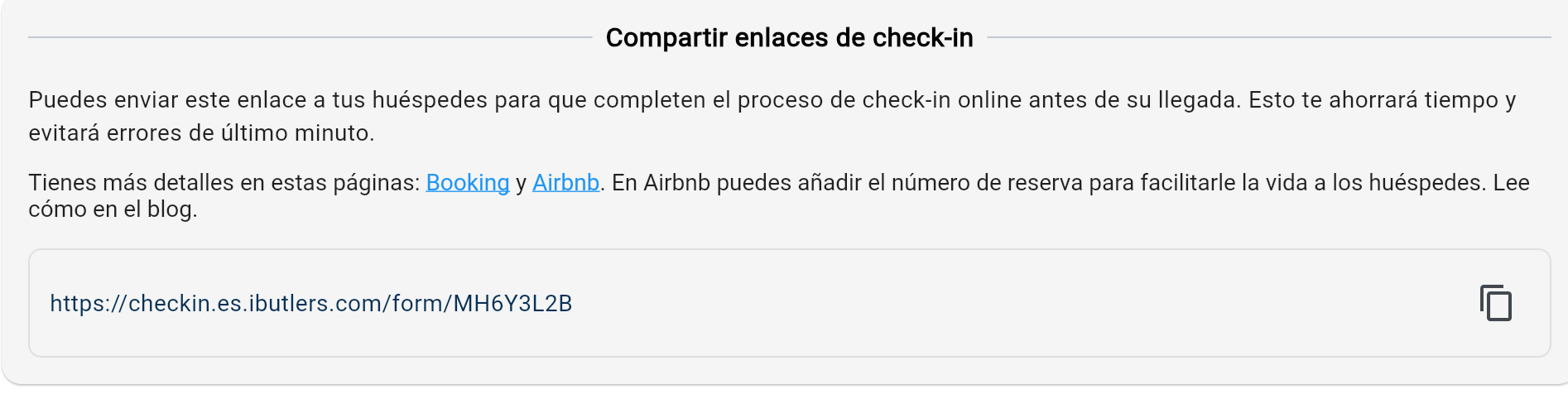
⚠️ Warning: Remember that each property has a unique link for the form, so you must create a message for each listing with its own link.
6 – Click ‘Continuar’ (Continue).
7 – Enter your chosen ‘Nombre de la plantilla’ (Template name) and select ‘Bienvenida’ (Welcome) under ‘Tema de la plantilla’ (Template subject).
8 – Click ‘Guardar plantilla’ (Save template).
9 – Go to the ‘Programador de plantillas’ (Template scheduler) tab and click the ‘Programar plantilla’ (Schedule template) button.
10 – Select ‘Cuando un cliente haga una reserva’ (when a guest makes a booking) and select the template you created earlier. We recommend creating another as a reminder for 1 or 2 days before arrival.
11 – Click ‘Añadir a la agenda’ (Add to the schedule).
12 – Now go to the ‘Ajustes de seguridad’ (Security settings) tab.
13 – In the ‘Tus enlaces aprobados’ (Your approved links) section, click ‘Añadir enlace’ (Add link) and then ‘Continuar’ (Continue).
14 – Enter app.ibutlers.com and click ‘Añadir enlace’ (Add link).
From now on, whenever a guest confirms a booking, they will automatically receive this message with the link to the form on iButlers.com.
🔍 Find out here how to do it for Airbnb
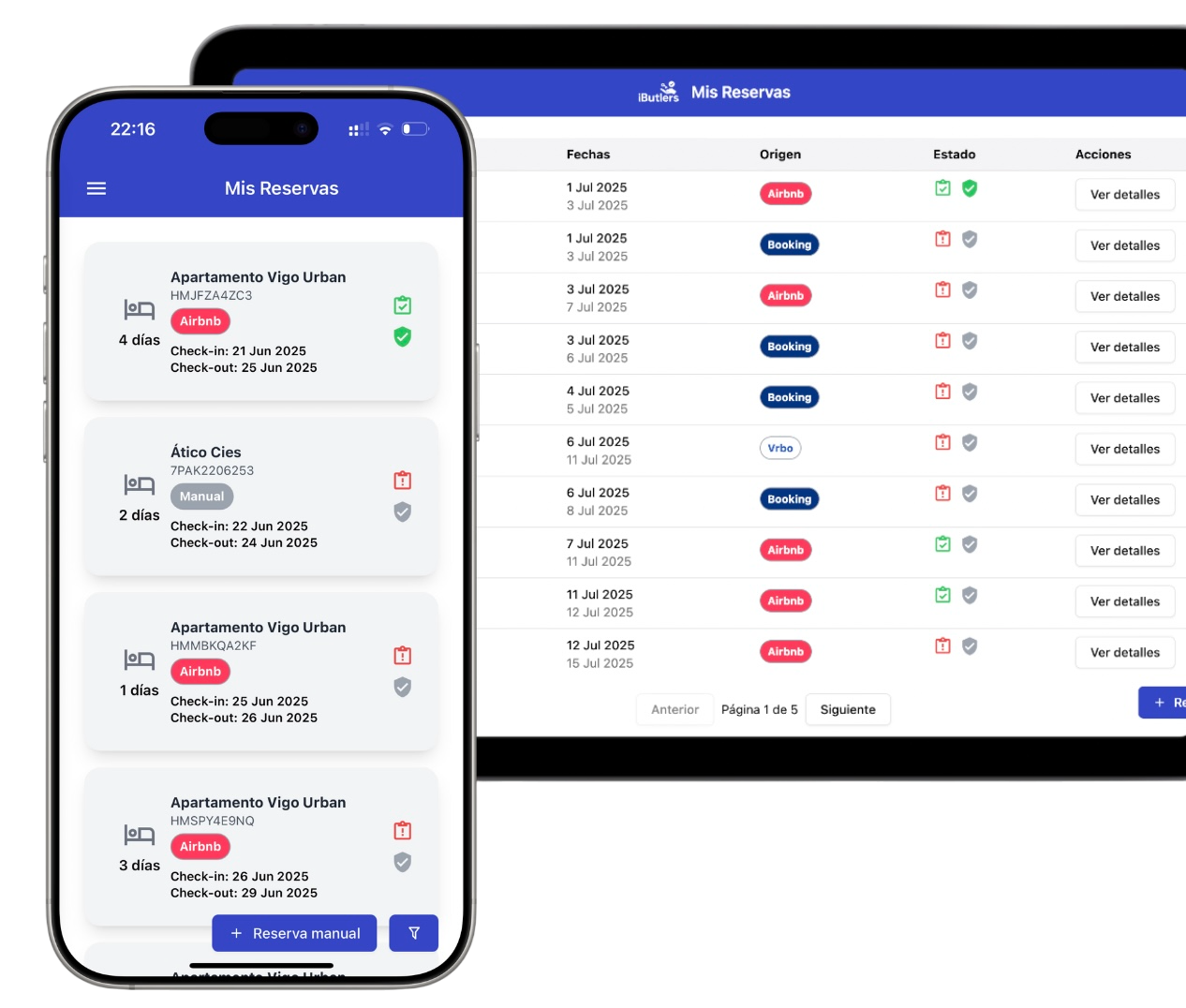
💡 iButlers, the best solution
Automate compliance with Royal Decree 933 2021 and the GDPR without complications. We collect only the data required by law, without storing copies of documents.
- Legal and secure identity verification
- Automatic submission of reports to the Ministerio del Interior
- Protecting your guests' privacy
✅ Visit our website or email contacto@ibutlers.com