How to correct a booking manually | BOOKING ISSUE |
Booking is experiencing widespread problems with iCal synchronisation. As a result, some bookings show incorrect dates, last longer than they should or even appear to have been cancelled in error because the iCal dates do not reflect the actual booking.
We recommend reporting the issue to Booking to help it receive more attention.
While Booking works on a fix, you can correct affected bookings manually by following these steps:
Step 1. Enable advanced editing mode
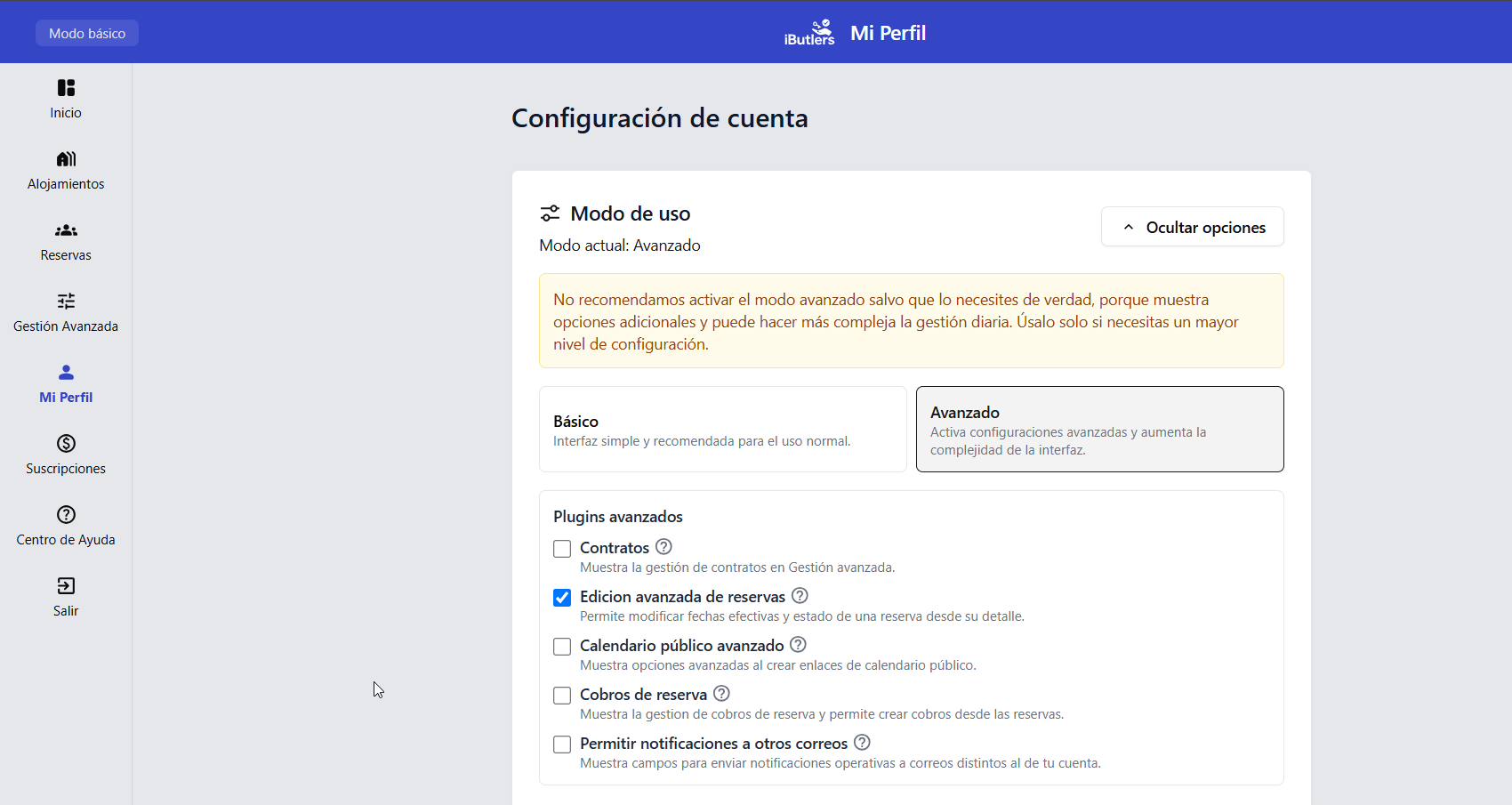
- Open your profile.
- Find the “Modo de uso” (Usage mode) option, select “Avanzado” (Advanced) and tick the “Edición avanzada de reservas” (Advanced booking editing) checkbox. (See image)
Step 2. Find the affected booking
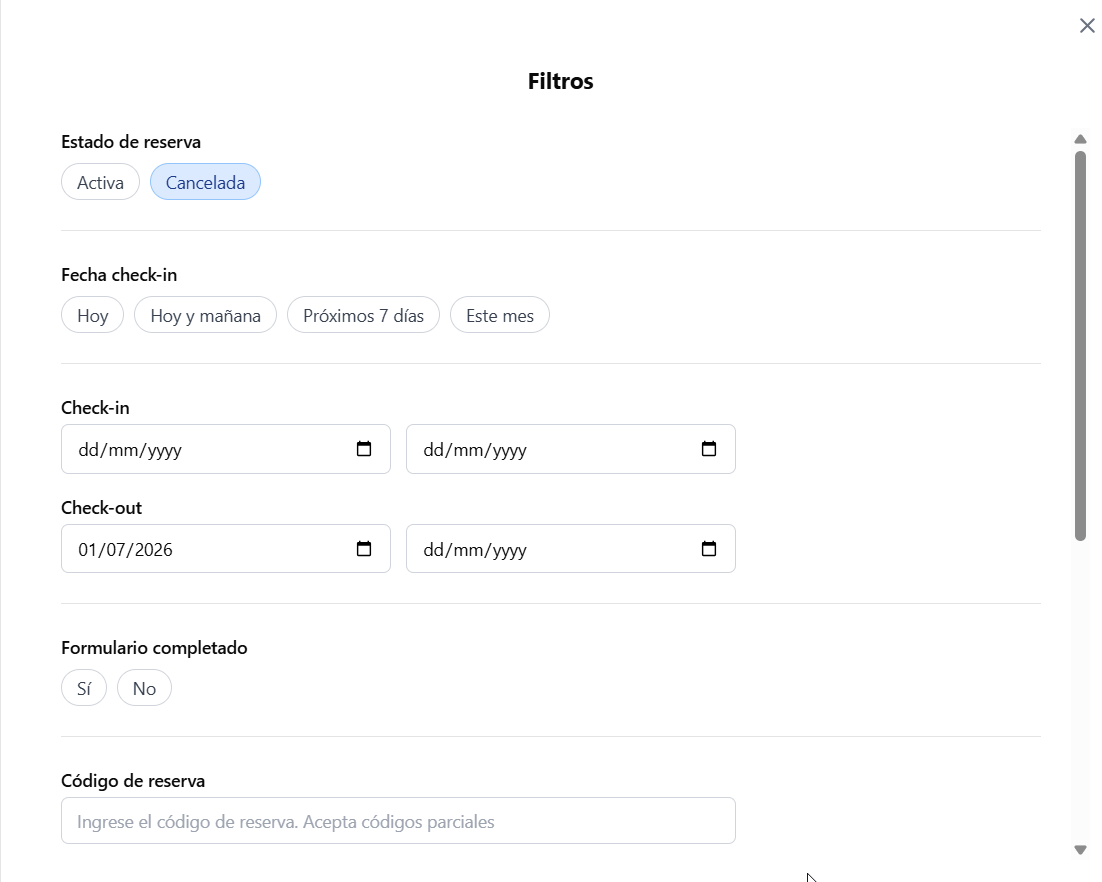
- Open the tab ‘Reservas’ (Bookings).
- Use the filters to find the booking you want to correct. If a booking has disappeared, filter by “Canceladas” (Cancelled). (See image below)
Step 3. Open manual editing
- When you find the booking, open it.
- At the top right, click “Cambios manuales” (Manual changes). (See image)

Step 4. Correct the booking
From this screen, you can:
- Activate a booking that was deactivated by mistake.
- Deactivate a booking if necessary.
- Change the arrival and departure dates if they are incorrect.
Only make the changes you need.
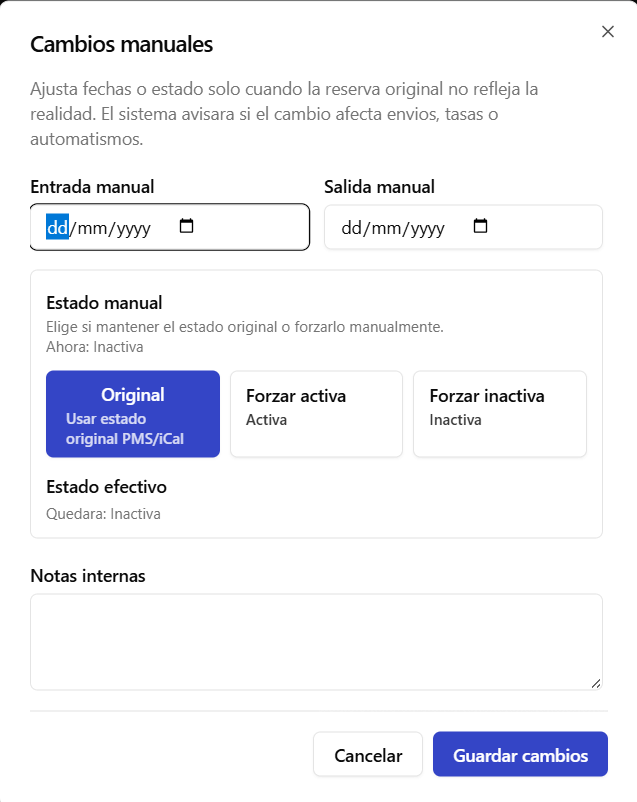
Step 5. Save the changes
When you have finished, click “Guardar cambios” (Save changes) to save the change.
Important:
If you have two bookings in Booking and Booking’s iCal feed combines them into one, you must create the second as a manual booking.
Check iCal data
To check the data sent in Booking's iCal feed, you can enter the URL in an iCal viewer such as https://tools.trevlix.com/ical-viewer/
It will display values in this format for each booking or blocked date;
UID: 1aa3005dc51b2bsbb06sc3e717fasad0@booking.com
CLOSED – Not available
Start: 2026-08-02 00:00:00
End: 2026-08-04 00:00:00
This indicates a booking or blocked dates from 2 August to 4 August.
POSSIBLE SOLUTION
Export a new iCal feed and check that the dates are exported correctly. If they are, paste the new iCal link into iButlers, replacing the old one, to synchronise the bookings again.