What to do if Booking.com removes your online check-in link or shows ‘Link Removed’
Occasionally, some accommodation providers find that the online check-in link they send to their guests through Booking.com disappears or is shown as “Link Removed”.
This happens because Booking.com applies very strict security filters: it only allows links and email addresses that have already been authorised in the extranet.
At iButlers, we explain how to fix it step by step 👇
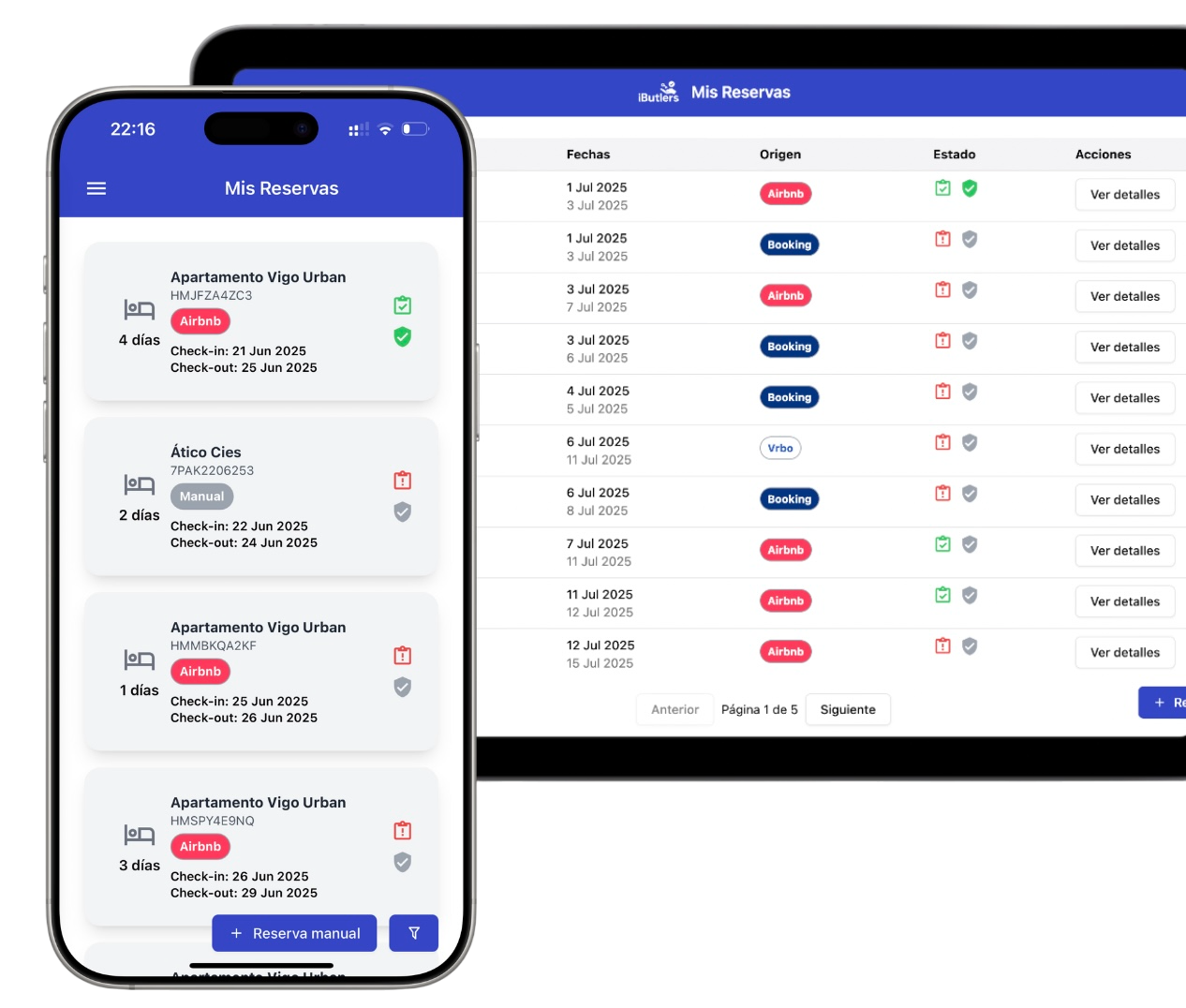
💡 Tired of guest registration? Did you know you can automate data collection and submission to the authorities?
With iButlers, you manage the entire process securely, legally and without hassle.
🔎 Why does Booking.com show ‘Link Removed’?
Booking.com blocks links it does not recognise as safe. This can happen:
- If you send a message containing your online check-in link through Booking.com's messaging service.
- If the automated email sent from your PMS or connected tool contains a link that has not been authorised.
In both cases, the guest receives the message but has no direct access to online check-in.
✅ Step 1: Check your extranet settings
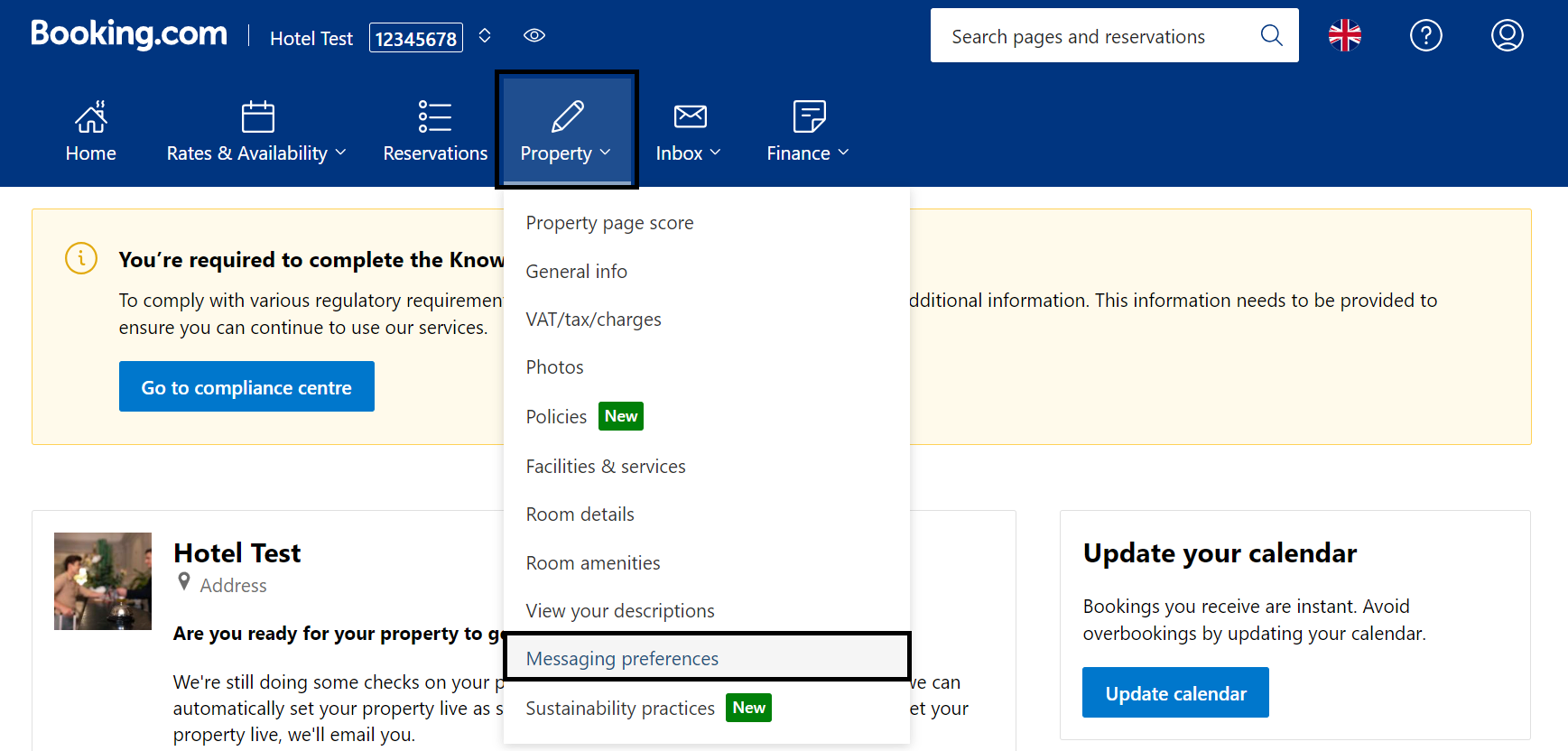
- Go to Property > Messaging Preferences in your Booking.com extranet.
- Open the Security settings tab.
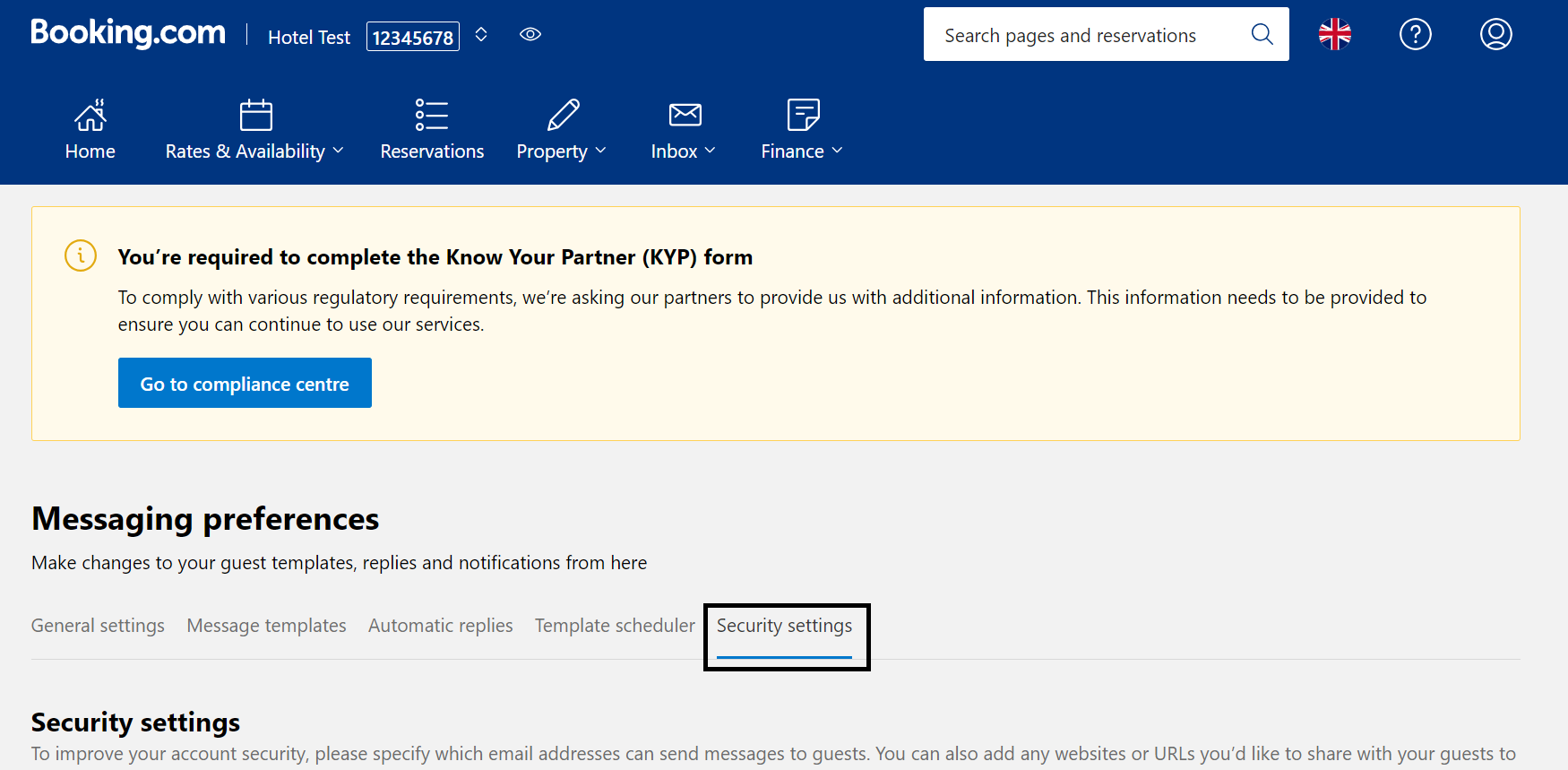
- Check that your iButlers online check-in link is on the Approved links list.
- Check-in URL format: https://checkin.es.ibutlers.com
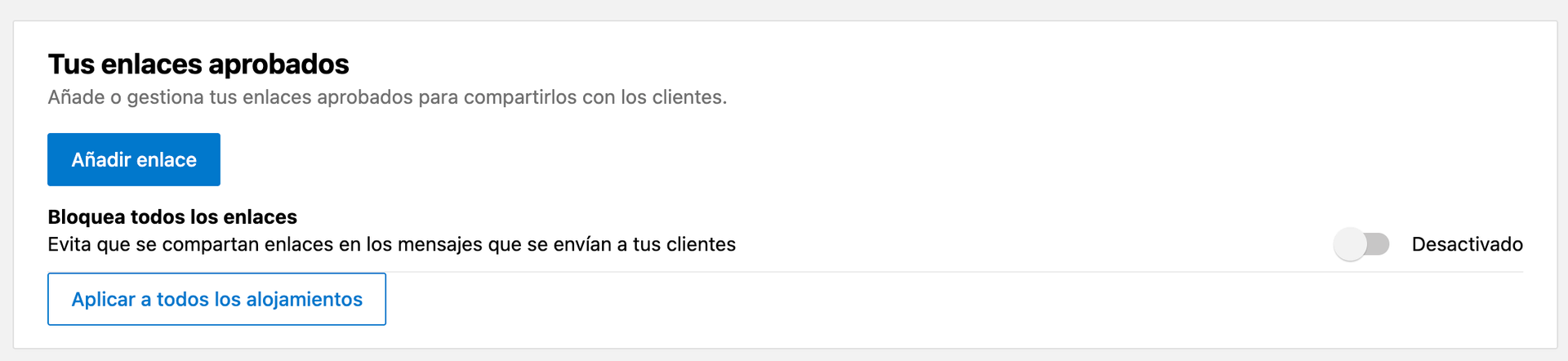
Add the following approved links:
https://checkin.es.ibutlers.com/form/
https://checkin.es.ibutlers.com/
https://app.ibutlers.com/
https://checkin.es.ibutlers.com/sharedform/
👉 If you use automated templates (PreStay or similar), make sure the correct iButlers link is also included.
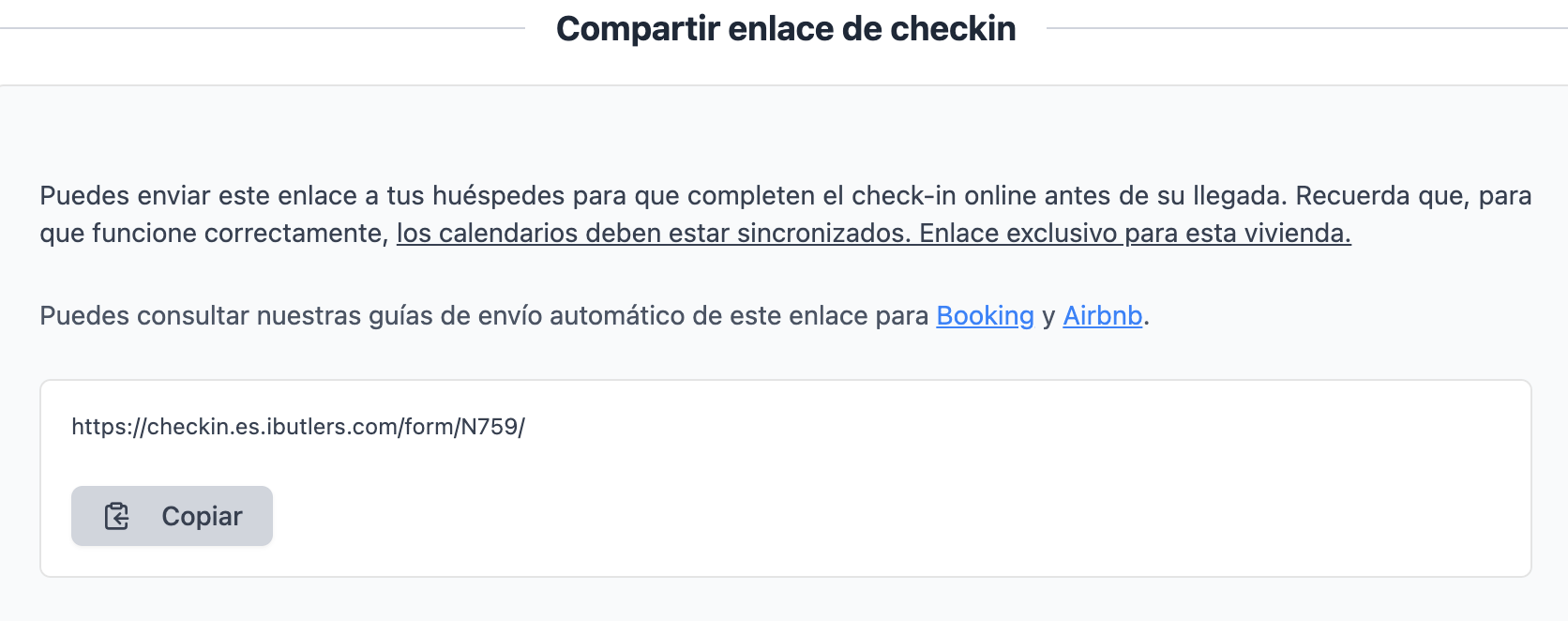
📍 Where can you find the correct link in iButlers?
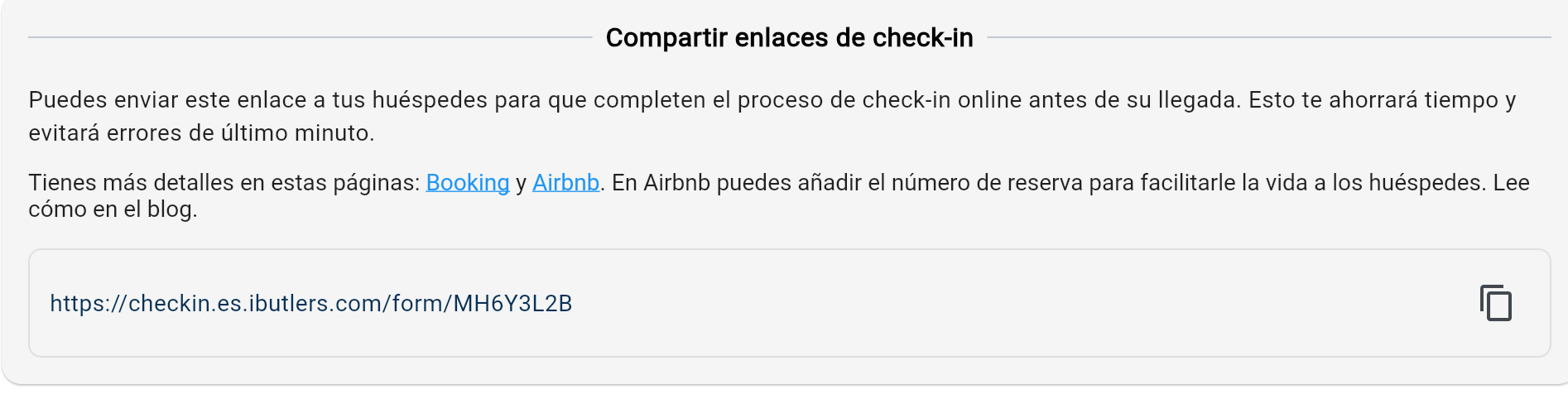
Your personalised online check-in link is available in your iButlers dashboard, in the section for each property.
There you will find the URL you need to authorise on Booking.com so that your guests can always access check-in without it being blocked.
EXAMPLE:
🔄 Step 2: refresh the authorisation if the problem persists
If you have already added the link and Booking.com keeps removing it, do the following:
- Go back to Security settings.
- Remove the iButlers check-in link from the authorised list.
- Save the changes.
- Add your iButlers link again and save once more.
This ‘refresh’ forces Booking.com to update its system and usually resolves the problem.
💡 Extra tips
- Check both links and email addresses: also authorise the email addresses you use with Booking.com.
- Authorise the entire domain (where possible): if your link generates personalised URLs for each guest, this will prevent future blocks.
- Automate sending the check-in link: configure your templates and automatic replies in Booking.com to ensure every guest receives the link in time.
❓ Frequently asked questions
How often should I check authorised links?
Ideally, review them whenever you change your domain, settings or email provider.
Which is better: authorising one link or the whole domain?
If your system generates dynamic links for each booking, it is more practical to authorise the domain.
Can I automate sending my online check-in link?
Yes. With iButlers, you can add it to your Booking.com templates so that each guest automatically receives their link.
💡 iButlers, the best solution
Automate compliance with Royal Decree 933 2021 and the GDPR without complications. We collect only the data required by law, without storing copies of documents.
- Legal and secure identity verification
- Automatic submission of reports to the Ministerio del Interior
- Protecting your guests' privacy
✅ Visit our website or email contacto@ibutlers.com